
CoverManager
If you manage your restaurant bookings with CoverManager, you no longer need to manually export and import customer lists every time you want to send them a campaign. Acumbamail connects to your CoverManager account and keeps your subscriber list up to date.
In this article, we explain how to activate the connection, what information is synchronized, and how to manage it.
In this article:
- Before you start
- How to activate the connection
- Create a list linked to a restaurant
- What data is synchronized
- Automatic and manual synchronization
- Multiple restaurants in the same account
- Pause or disconnect synchronization
- Frequently asked questions
Before you start
You need:
- An active Acumbamail account.
- A CoverManager account.
- Activate the Acumbamail integration in the CoverManager dashboard (we explain this in the next step).
How to activate the connection
The connection is initiated from CoverManager. Once activated, Acumbamail automatically receives the restaurants associated with your CoverManager account and makes them ready to link to your lists.
- Log in to your CoverManager dashboard and go to Settings → Integrations → Email marketing. In the list of integrations, select Yes for "Activate Acumbamail".

- In the Acumbamail Token Name field that appears below, paste the token from your Acumbamail account. You can find it at this link .
- Save the changes in CoverManager. As soon as the setup is complete, your restaurants will automatically appear as available in Acumbamail.
Create a list linked to a restaurant
Each CoverManager restaurant is linked to a new and empty list in Acumbamail. The linking is done only once, when creating the list.
- In Acumbamail, go to Lists and click Create list. Fill in the name and basic details until you reach the import step.

- In the import step, choose the CoverManager lists option.
-
Select the restaurant you want to link to this list from the dropdown and click the continue button. You will only see restaurants that are not already linked to another list. If a restaurant does not appear, check in CoverManager that it is still enabled in the integration or check whether you already linked it to another list in Acumbamail.
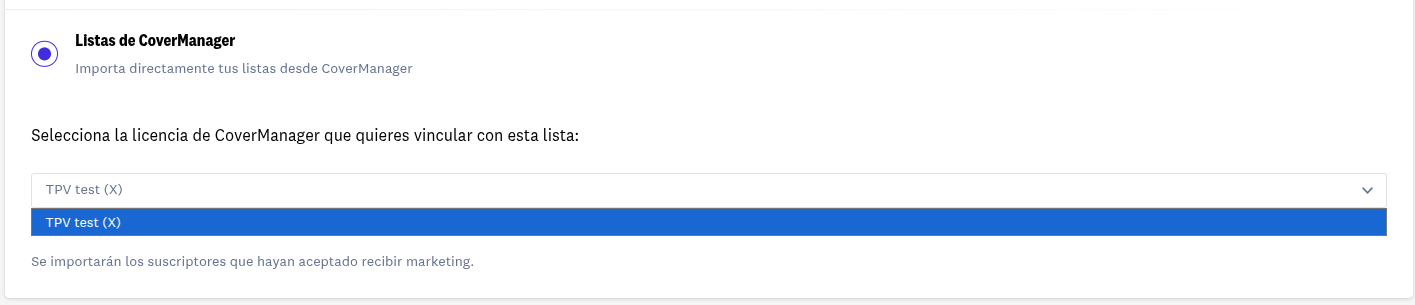
- Acumbamail will import the subscribers who have agreed to receive marketing in CoverManager and will activate daily synchronization.

Each CoverManager restaurant is linked to a single Acumbamail list, and that list must be empty at the time of linking. Once linked, daily synchronizations work on that same list: they add new customers with marketing consent and update the details of existing ones.
What data is synchronized
For each customer who has agreed to receive marketing in CoverManager, Acumbamail saves the following in your list:
- First and last name
- Phone number and country code
- Country
- Language
- Date of birth
- Member number
- Customer internal ID in CoverManager
- Customer active tags in CoverManager
Customers without an email address are not imported because we cannot send campaigns without an email address. Customers who have not agreed to receive marketing are not imported either, even if they exist in your CoverManager account.
Important: In each synchronization, Acumbamail imports into your list the data that comes from CoverManager. If you manually edit any of the synchronized data in Acumbamail (the nine listed above: email, first name, last name, phone number, country code, country, language, date of birth, member number, internal ID, and tags), the change will be lost in the next synchronization. If you want to change it permanently, edit it in CoverManager. Any other custom fields you add to the list in Acumbamail are not affected by the synchronization.
Automatic and manual synchronization
Synchronization runs automatically once a day. In each run, Acumbamail retrieves new customers and changes since the last synchronization (modified data, tags, new opt-ins). You do not need to do anything for it to work.
If you need an immediate update, go to the linked list and click Synchronize data. While it runs, you will see a progress screen, and when it finishes you will return to the list details with the last synchronization date and updated counters.

Multiple restaurants in the same account
If you manage multiple restaurants in CoverManager, once the integration is activated you will see them all available in Acumbamail. Create one list for each restaurant you want to synchronize by following the flow above. Each list maintains its own daily synchronization.
Pause or disconnect synchronization
To stop synchronization for a list, deactivate the integration from CoverManager or ask our support team to unlink that list. The list keeps the data it already has, but it stops receiving updates. To synchronize it again, link the restaurant to a new list.
Frequently asked questions
Are customers duplicated in daily synchronizations?
No. Acumbamail identifies each customer by their internal ID in CoverManager (with the email address as a fallback if the ID has not been saved yet), so subsequent synchronizations update the existing customer instead of creating duplicates.
If a customer opts out of marketing in CoverManager, do they disappear from Acumbamail?
For now, this is not propagated automatically. If a customer disables consent in CoverManager, make sure to also mark them as unsubscribed in Acumbamail to respect their decision.
What happens if synchronization fails one day?
Acumbamail will try again in the next daily run with all changes accumulated since the last successful synchronization. If the failures persist, contact our support team.
Can I choose which CoverManager tags are imported?
All of the customer’s active tags are imported together into the subscriber’s "Tags" field in Acumbamail, separated by ; . You can use that field in filters and create segments from it.
My restaurant does not appear in the dropdown when creating the list.
Check in this order: (1) that the integration is still active in your CoverManager dashboard; (2) that the restaurant is not already linked to another Acumbamail list (each restaurant can be linked to only one list at a time); (3) that the list you are creating is empty.
Still need help?
If you have any problems activating the integration or synchronizing, write to us at soporte@acumbamail.com, indicating the name of the restaurant and the affected list. Our team will help you resolve it.